A least-privilege S3 bucket in CDK TypeScript
No wildcards, no surprises — a tight bucket policy recipe in CDK TypeScript.
Originally published on AWS in Plain English.

Photo by Max Duzij on Unsplash
Introduction
“Changes are Permanent! We have to either adapt to them to conquer them or get conquered by them.” Sounds like a war zone? Welcome to the world of writing Infrastructure as Code. In this blog, we going to learn about deploying an S3 bucket with a fine grind bucket policy.
Before starting the blog, let me introduce myself. My Name is Subbusainath Rengasamy aka theGentleGiant, a full-stack Serverless developer, AWS and open-source enthusiast, working in a startup called Antstack Technologies Private Limited.
What is AWS CDK?
AWS CDK stands for Cloud Development Kit. It is a tool developed by Amazon Web Services. Which helps us to develop an Infrastructure using a format of code. So, we don’t have to write complex YAML files to create AWS services as our infrastructure. It supports 5 languages (Python, TypeScript, Java, .NET, and JavaScript).
Prerequisites
Install these packages before starting to use it
- Install the latest version of AWS-CDK by running this command
npm install -g aws-cdk- Install AWS s3 package from AWS-CDK
npm install @aws-cdk/aws-s3- Knowledge of TypeScript/Javascript
- Active AWS Account
- Use your Favourite Text Editors i.e., (Vim, Atom, Sublime Text, or Visual Studio Code). In my case, I am using my most favorite one VISUAL STUDIO CODE 😍
Explanation with code Example
In this tutorial, I am going to use CDK with TypeScript. To create a simple CDK application follow these 3 steps
- create an empty directory in your file structure using
// to create a directory in your local systemmkdir medium-cdk-blog-post// cd to move into the folder which you created in your systemcd medium-cdk-blog-post- After creating the folder and moved into created the folder. Use this command to create a CDK app
cdk init app --language=typescriptthis command will create you a CDK template and the folder structure after running the above-mentioned command will look like this.

Select the ./bin inside this folder you can find the stack creation class. Inside that class, you can specify your environment variables like AWS ACCESS KEY and AWS REGION, etc. In my case, I have my credentials in my local so, I am not gonna add any environment variable inside that class.
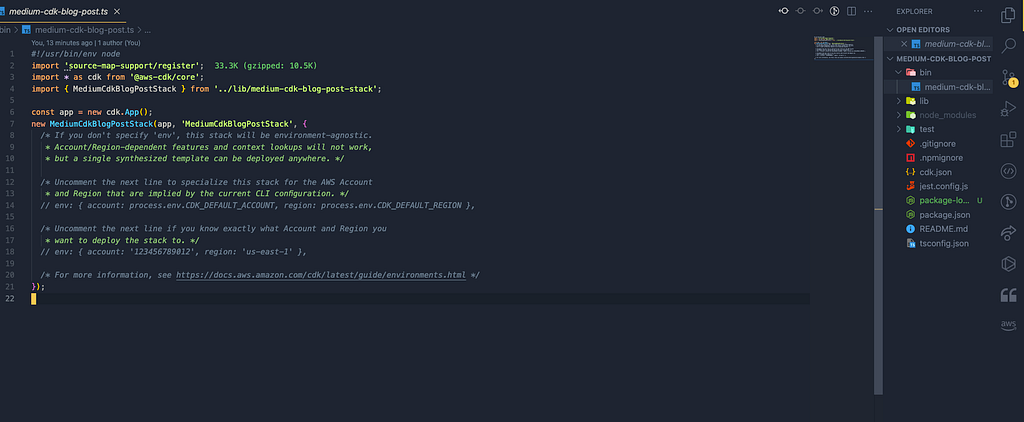
To proceed further, we need to select the folder ./lib and add our code inside the file which is already created by the CDK template. Add this code into that file.
import * as cdk from "@aws-cdk/core";import * as s3 from "@aws-cdk/aws-s3";import * as iam from "@aws-cdk/aws-iam";export class MediumCdkBlogPostStack extends cdk.Stack \{ constructor(scope: cdk.Construct, id: string, props?: cdk.StackProps) \{ super(scope, id, props); // The code that defines your stack goes here const mydemobucket = new s3.Bucket(this, "my-demo-blog-bucket", \{ bucketName: "my-demo-blog-bucket-1", removalPolicy: cdk.RemovalPolicy.DESTROY, \}); // adding bucket policy for this bucket mydemobucket.addToResourcePolicy( new iam.PolicyStatement(\{ effect: iam.Effect.ALLOW, principals: [new iam.ServicePrincipal("lambda.amazonaws.com")], actions: ["s3.GetObject"], resources: [`$\{mydemobucket.bucketArn\}/*`], \}) ); \}\}In this code, we created an export class that has our required service which we want to create and deploy to the AWS console. The first line of this says, we have to import the library with respect to the service we want to use. Here, I want to use AWS s3 service and AWS IAM service so, I have imported those 2 libraries. You can notice that by default we are importing a library @aws-cdk/core that helps us to use the core functionality of the CDK.
we use the function called Bucket from the library of @aws-cdk/aws-s3 which takes 3 params first param refers to the constructor, “my-demo-blog-bucket” this is referred to as id where CDK use to identify your bucket and the third param is for props which we can use to add properties like removal of bucket policy, encrypting the bucket, adding bucket name and etc.
In this code, I used both bucketName property and removalPolicy for adding bucket name and removing the bucket policy.
The next Line of this code explains, Adding the resource policy to the bucket by adding policy-statement using iam the library and allowing a lambda function to access the bucket with limited action to perform. Here, We fine-grind the access for lambda to access the bucket and its objects. If any lambda wants to access this bucket, we provide this bucket policy to the lambda which is only able to do actions like getObject.
Deploy
Before Deploying we need to run npm run build to compile the typescript file to JavaScript file since we are using typescript.
Yay! Finally, we are into our last step of this blog
To Deploy your stack run this command in your terminal. In this example, I am going to use a flag —profile to deploy to the specific profile.
cdk deploy --profile ############_AdministratorAccesswhen we run the above command, we will get to see the service which we are going to create in the console. It will give you the final control over creating the stack with (y/n)? question. If we don’t want the CDK to create those service stacks we can simply say NO while you are deploying it. It gives so much control to us when we try to create a service and deploy it.
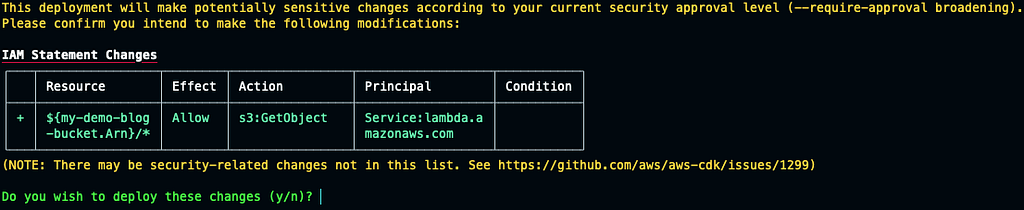
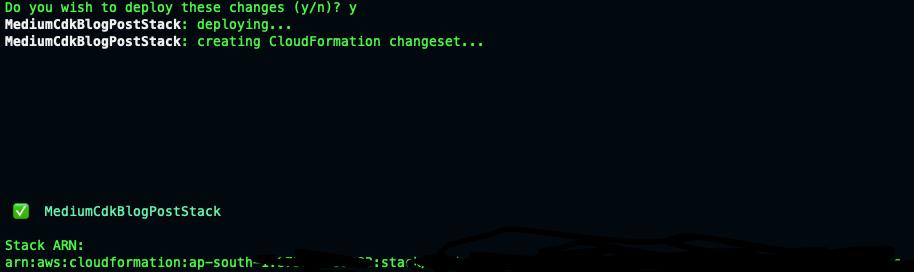
If you see this ✅ after you run the CDK deploy command, that means your stack has been deployed successfully.
After deploying the stack, we can see our service get created in the console.

And the Bucket Policy which we created in the CDK stack.

Destroy
Once you are done with your stack creation and test it. Then you want to delete the stack from the AWS console. You just have to run this command cdk destroy . In my case, I am using a specific profile so, I am going to use —profile the flag with cdk destroy and mention my profile name and will hit run
cdk destroyafter running the command we get a question like (y/n)? if we give y, then cdk starts to delete the stack one by one. once it completes its process we will get to see the message as cdk stack destroyed.
Conclusion
Finally! if you come this long, then you completed this tutorial! Hurray! You can simply play around with AWS CDK and its services. If you think this blog post was useful, then please like and share this blog post with your friends who are into AWS or new to AWS, or someone who is trying new technology. If you think I have missed something, then please comment it out and I will make sure it won’t happen again.
You can get the code from here: https://github.com/subbusainath/medium-cdk-blog-post
You can refer to this page for more usage: https://docs.aws.amazon.com/cdk/api/latest/docs/aws-s3-readme.html
You can follow me on social media:
Twitter: SubbuSainath
Instagram: Im_sainath
LinkedIn: subbusainath
*More content at *plainenglish.io
How to Deploy S3 Bucket using AWS CDK TypeScript with Limited Bucket Policy? was originally published in AWS in Plain English on Medium, where people are continuing the conversation by highlighting and responding to this story.